Automatic layer separation
Create a segment map from a completed Grok Imagine Image 2.0 generation.
Editing workflow
The workspace connects the complete Grok Imagine Image 2.0 workflow: generate a base image, build its segment map, select one or more layers, then describe the edit.

Create a segment map from a completed Grok Imagine Image 2.0 generation.
Choose one or more returned masks so the edit targets the intended parts of the image.
Edited results retain their source task relationship for continued work in the workspace.
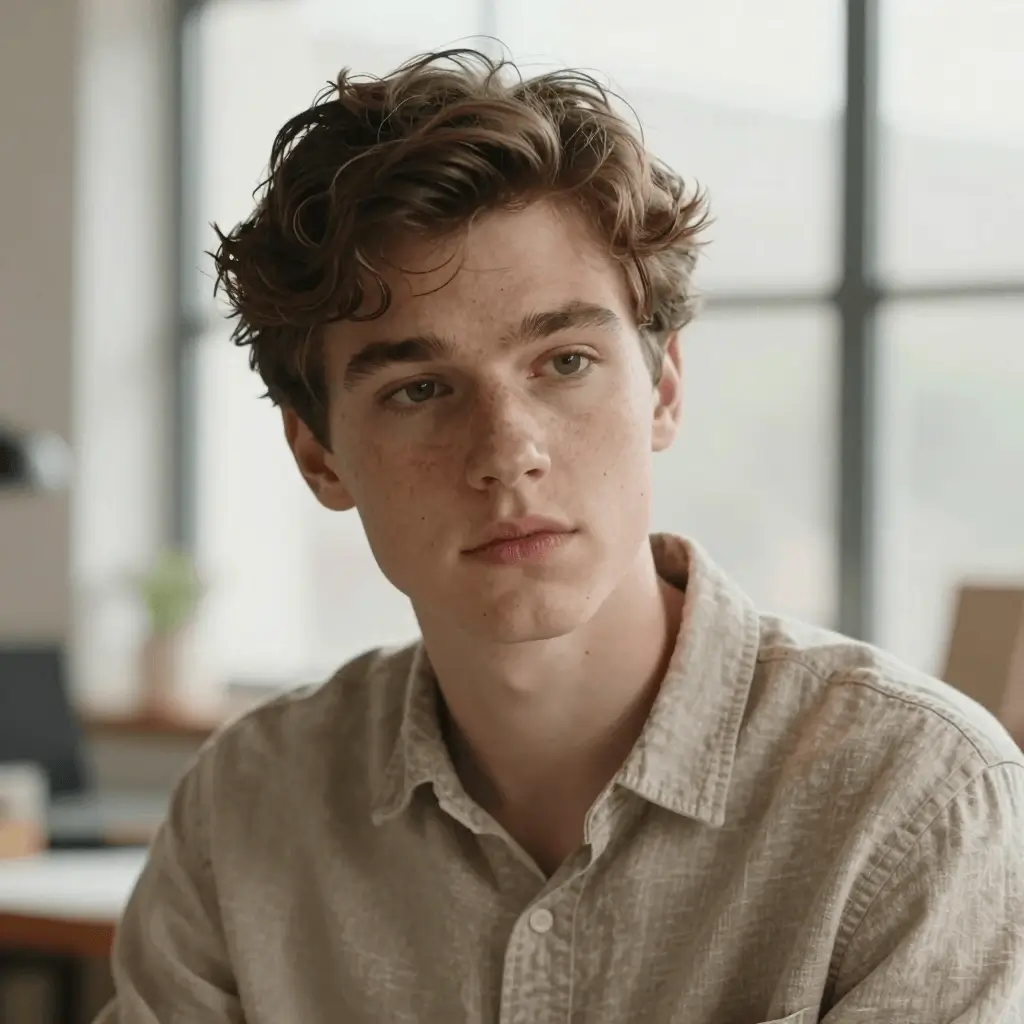
Prompt-faithful detail for characters and mood.
A cinematic portrait of an explorer in a luminous archive, warm window light, detailed fabric, shallow depth of field, realistic skin texture
Start editing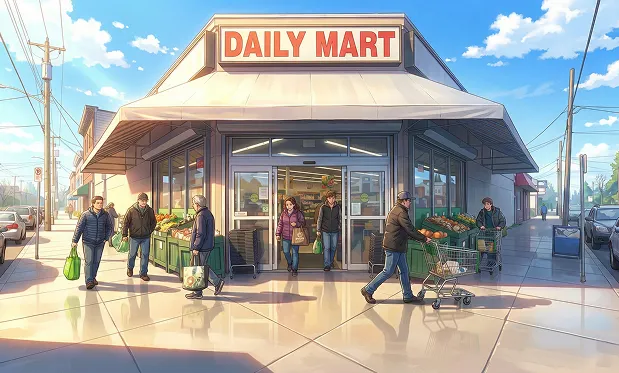
Stylized scene with coherent background detail.
A stylized anime street scene at blue hour, rainy pavement reflections, character looking toward a glowing sign, detailed background, clean line art
Start editingOpen a completed Grok Imagine Image 2.0 result and choose Separate layers. The workspace uses the original task ID to request its segment map.
Select the returned layers, enter the change you want, and submit. The edited image is saved as a child of the original generation.
Create the first image from a clear prompt.
Open Separate layers, then choose the masks you want to modify.
Enter an edit prompt, generate the child result, then download or continue from history.
Yes. Generate with Grok Imagine Image 2.0, open Separate layers on the result, select masks and submit an edit prompt.
The layer workflow starts from a completed Grok Imagine Image 2.0 task because the segment and edit APIs reference that source task ID.